Which message did you see after setting up call forwarding? Success, failure and MMI errors
After you turn on call forwarding through Traceback, your carrier shows a message that tells you whether it worked. Here is what each message looks like, in English, Hebrew and on Android, and what to do in each case.
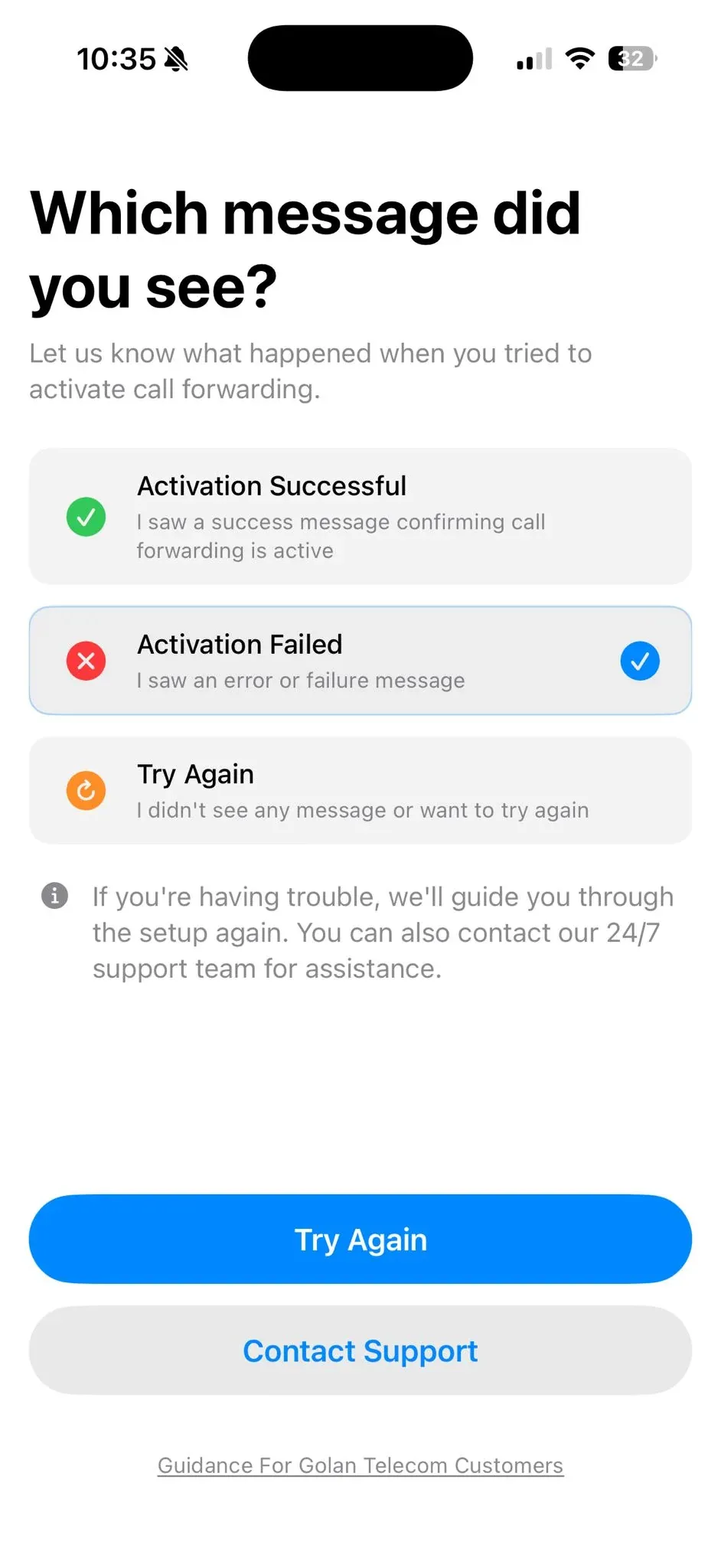
When you turn on call forwarding through Traceback, your phone dials a short code and your carrier shows a message. That message tells you whether the setup worked. Right after it, Traceback asks "Which message did you see?", and your answer decides what happens next. This guide shows what each message looks like, what it means, and what to do.
How to get to this screen
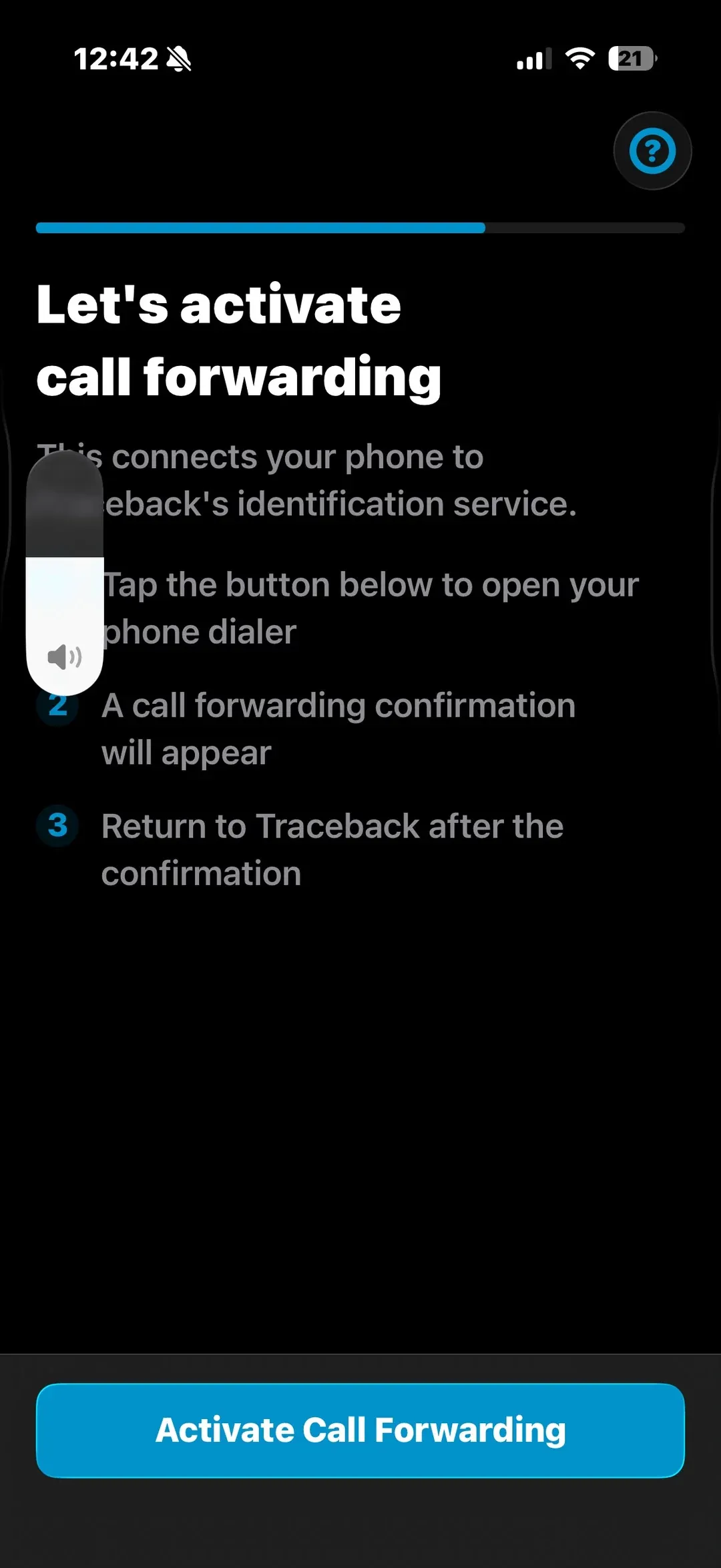
- In the Traceback app, on the "Let's activate call forwarding" screen, tap Activate Call Forwarding. If you set up the service before, go to Settings and tap Restart Service.
- Tap the dial button. The app dials your carrier's forwarding code for you, so you don't need to type it.
- Wait a few seconds. Your carrier shows a message on screen.
- Go back to Traceback and, on the "Which message did you see?" screen, pick the option that matches what you saw.
Success message: "Setting Activation Succeeded"
If forwarding was turned on, you'll see a list of lines that say one of these, each followed by When Busy:
- Setting Activation Succeeded
- Setting Registration Succeeded
Both mean success. On a phone set to Hebrew, the lines start with "ההפעלה הוגדר בהצלחה".
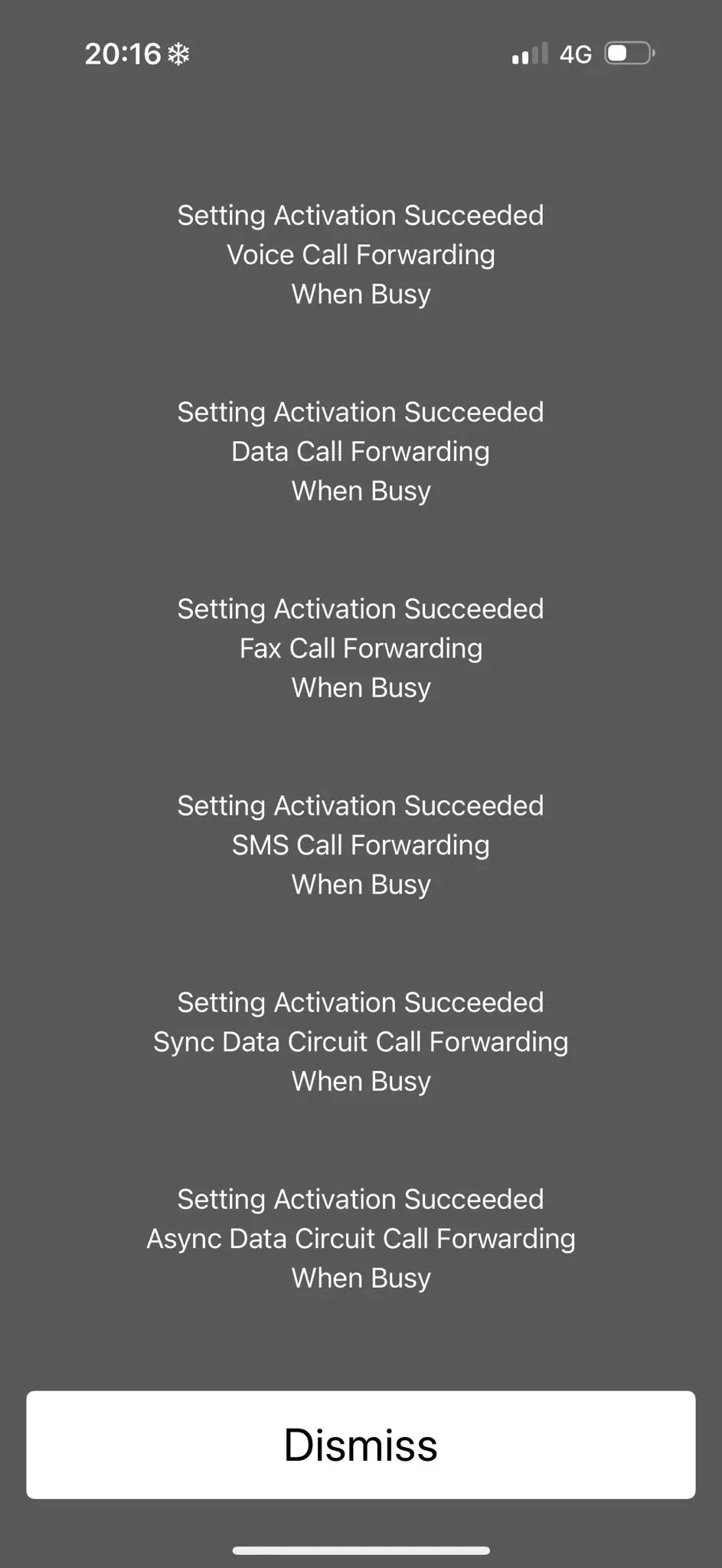
The message lists several service types (voice, data, fax, SMS and more). That's normal, because the code turns on forwarding for all basic services. The line that matters for reveals is Voice Call Forwarding.
What to do now:
- Tap Dismiss.
- In Traceback, choose Activation Successful.
- Run a test call: ask someone to call you from No Caller ID, then decline the call. The number shows up in the app shortly after.
Failure message: "Error performing request"
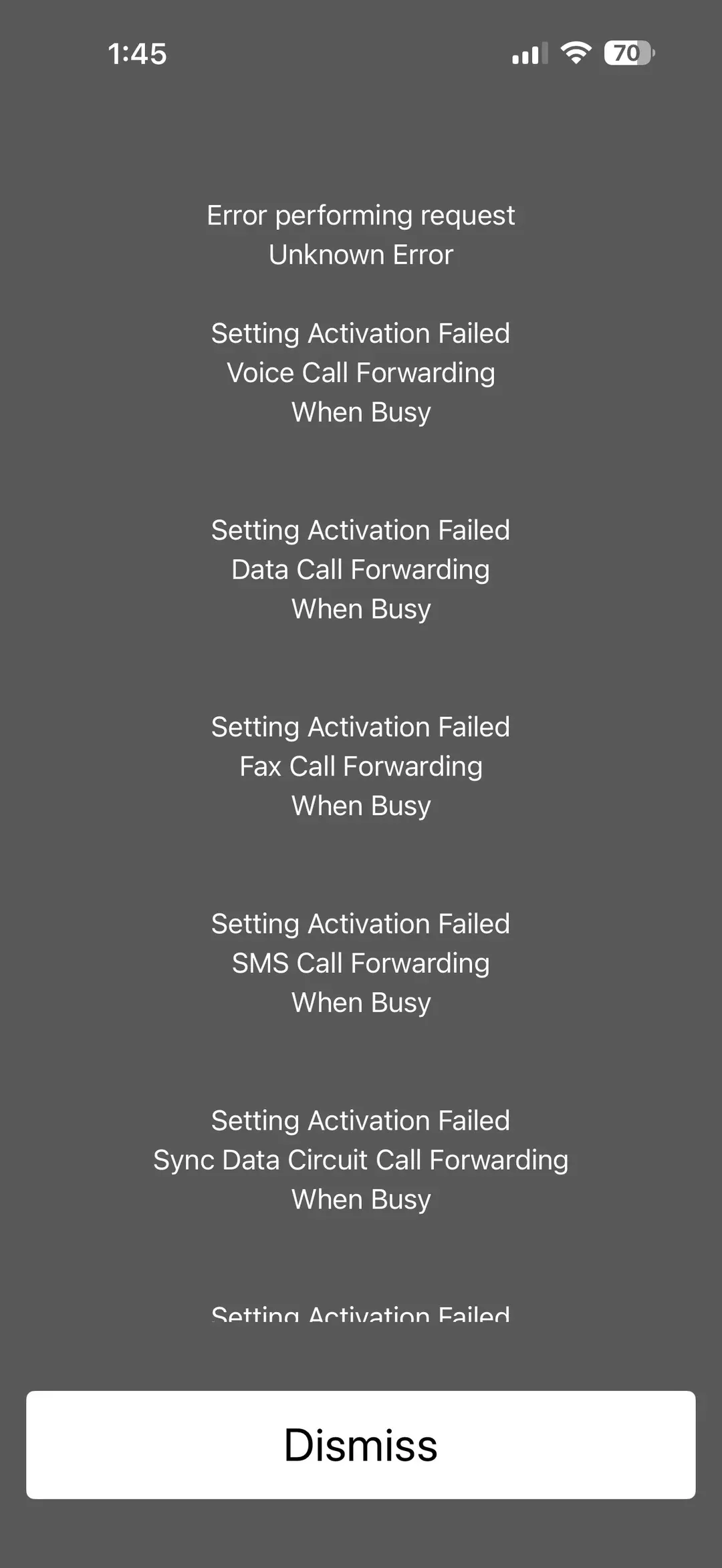
If activation didn't go through, you'll see:
- Error performing request or Unknown Error
- followed by lines of Setting Activation Failed
On a phone set to Hebrew it reads "שגיאה בעת ביצוע הפקודה", and in Arabic "فشل إعداد التنشيط".
What to do now:
- Tap Dismiss, then in Traceback choose Activation Failed.
- Tap Try Again to dial the code once more. Sometimes the carrier doesn't respond on the first try.
- Make sure you have good cellular reception while dialing.
- Check that your line is supported. Prepaid SIM cards and Wecom are not supported. See Is my carrier supported?
- Golan Telecom customers: there are separate instructions, see Will Traceback work for Golan Telecom users?
- If it still fails, tap Contact Support. Our team is available 24/7 and will help you finish the setup.
On Android: "Connection problem or invalid MMI code"
On some Android phones, instead of a list of lines, a small pop-up appears saying "Connection problem or invalid MMI code". This is also a failure: your carrier didn't accept the code.
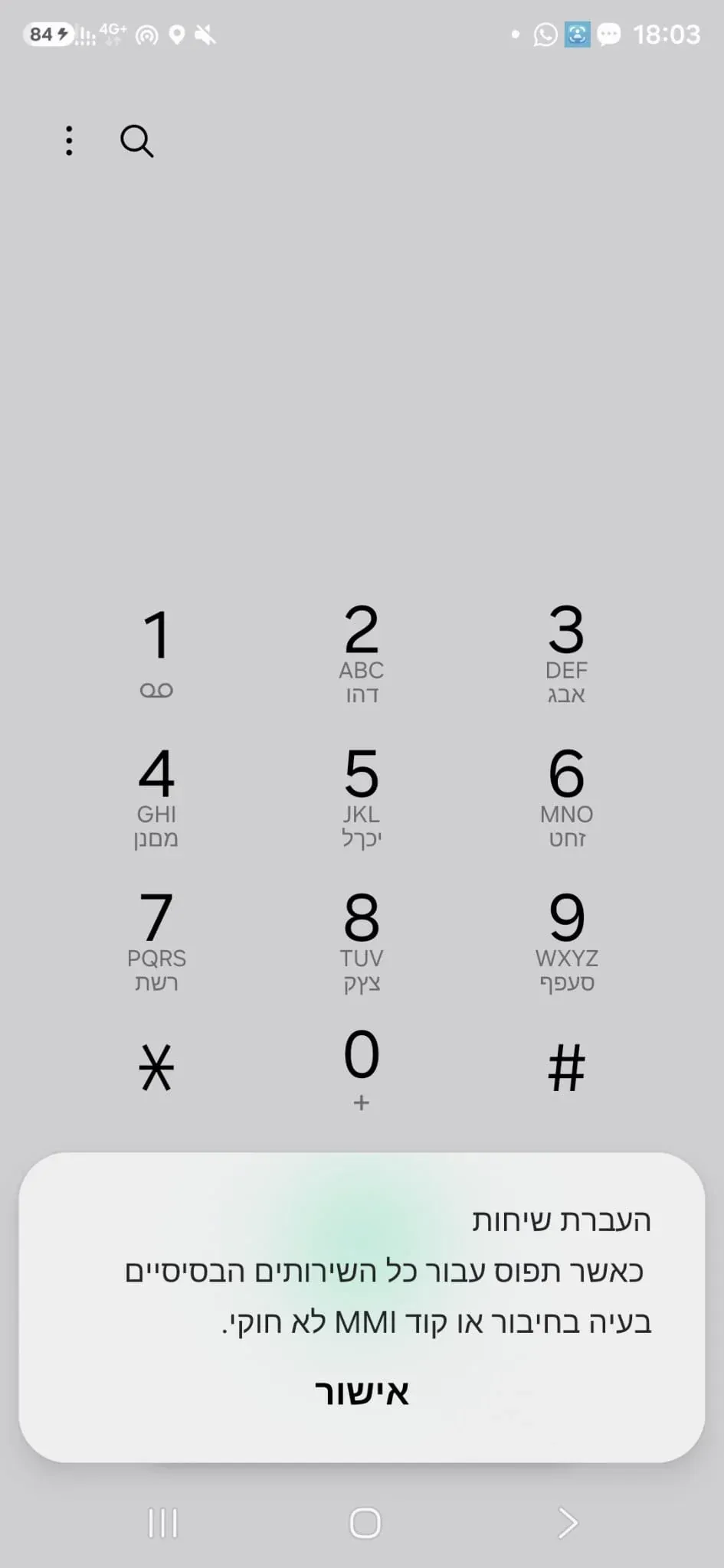
What to do now:
- Tap OK, then in Traceback choose Activation Failed.
- Tap Try Again when you have good cellular reception.
- If the error keeps coming back, set up forwarding manually in your phone's settings. Important: enter the number under Forward when busy only. Full steps are in the Android call forwarding setup guide.
I didn't see any message
If no message appeared, or you closed it before reading it, choose Try Again in Traceback and the app will dial the code again. Keep the screen open until the message shows up.
After a success: two things to check
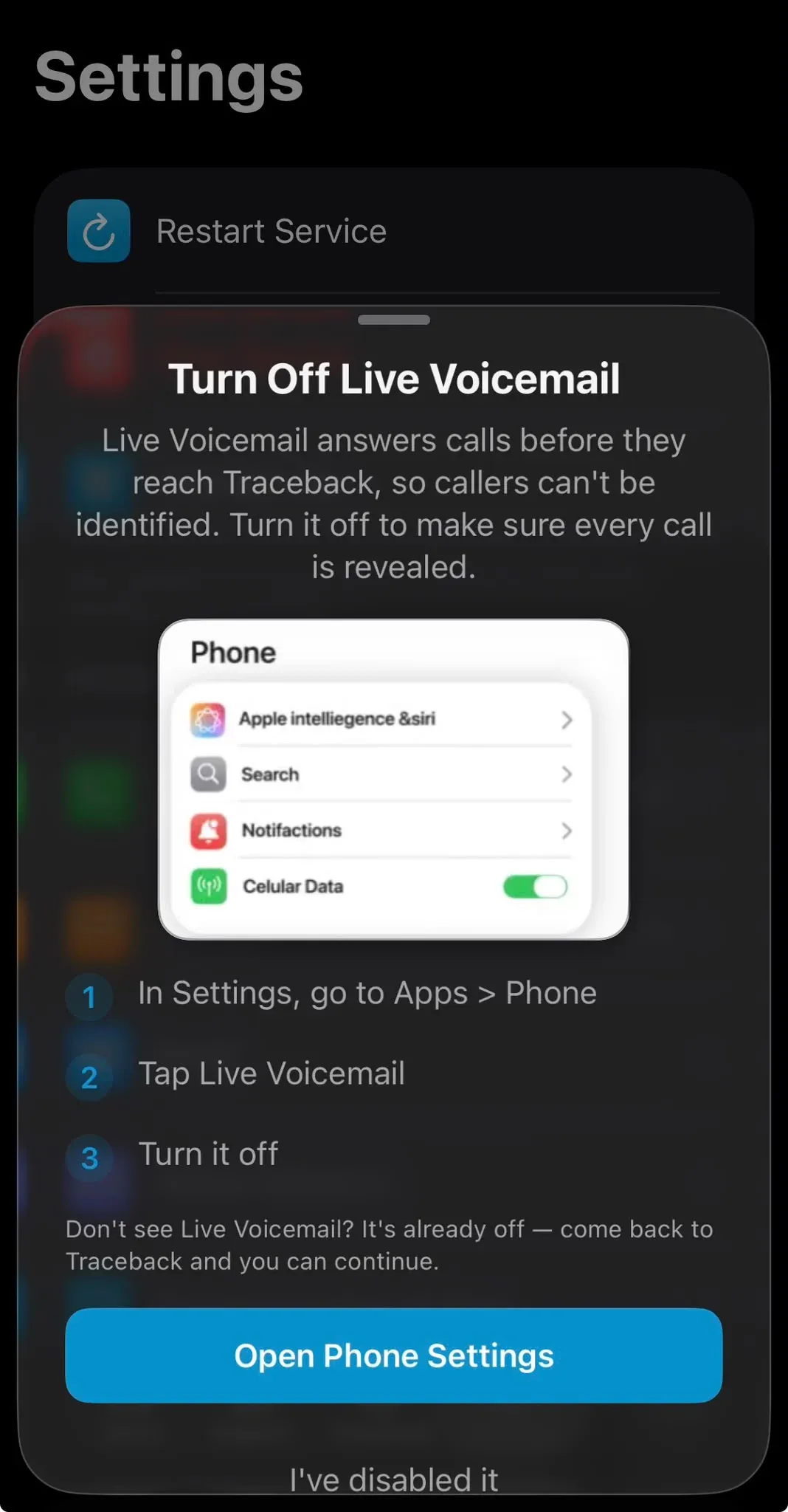
On iPhone, turn off Live Voicemail. Live Voicemail answers calls before they reach Traceback, and then the caller can't be revealed. To turn it off: Settings > Apps > Phone > Live Voicemail > Off.
Allow notifications. That way you get an alert the moment a No Caller ID number is revealed, without opening the app.
FAQ
Part of the lines succeeded and part failed. What does that mean?
The line that counts is Voice Call Forwarding. If it succeeded, choose Activation Successful and run a test call. If it failed, choose Activation Failed and follow the steps above.
Activation succeeded, but No Caller ID calls still aren't revealed. Why?
Make sure you decline the call rather than answer it, and that voicemail isn't picking it up first. If you changed your SIM, phone or carrier, you need to set up forwarding again. You can also go through the iPhone call forwarding setup guide.
Does call forwarding send all my calls to Traceback?
No. Forwarding only works "when busy", for example when you decline a call. Calls you answer stay with you as usual, and we never listen to or record your calls.
Was this article helpful?
Your feedback helps us write better support content.