iPhone: How to Set Up Call Forwarding for Traceback

To reveal No Caller ID calls on your iPhone, Traceback needs your calls forwarded to us. iPhone doesn't let you edit call forwarding in Settings, so you set it up with a quick dialer code instead. Here's both ways to do it.
To set up call forwarding for Traceback on iPhone, open the Traceback app, go to Settings, tap Restart Service and place the call the app prompts, which dials the forwarding code for your carrier. You can also type that code into the phone dialer yourself; don't use the iPhone Call Forwarding switch, which forwards all calls.
Option 1: Set Up Through Traceback (Recommended)
Open the Traceback app and go to Settings.
Tap Restart Service.
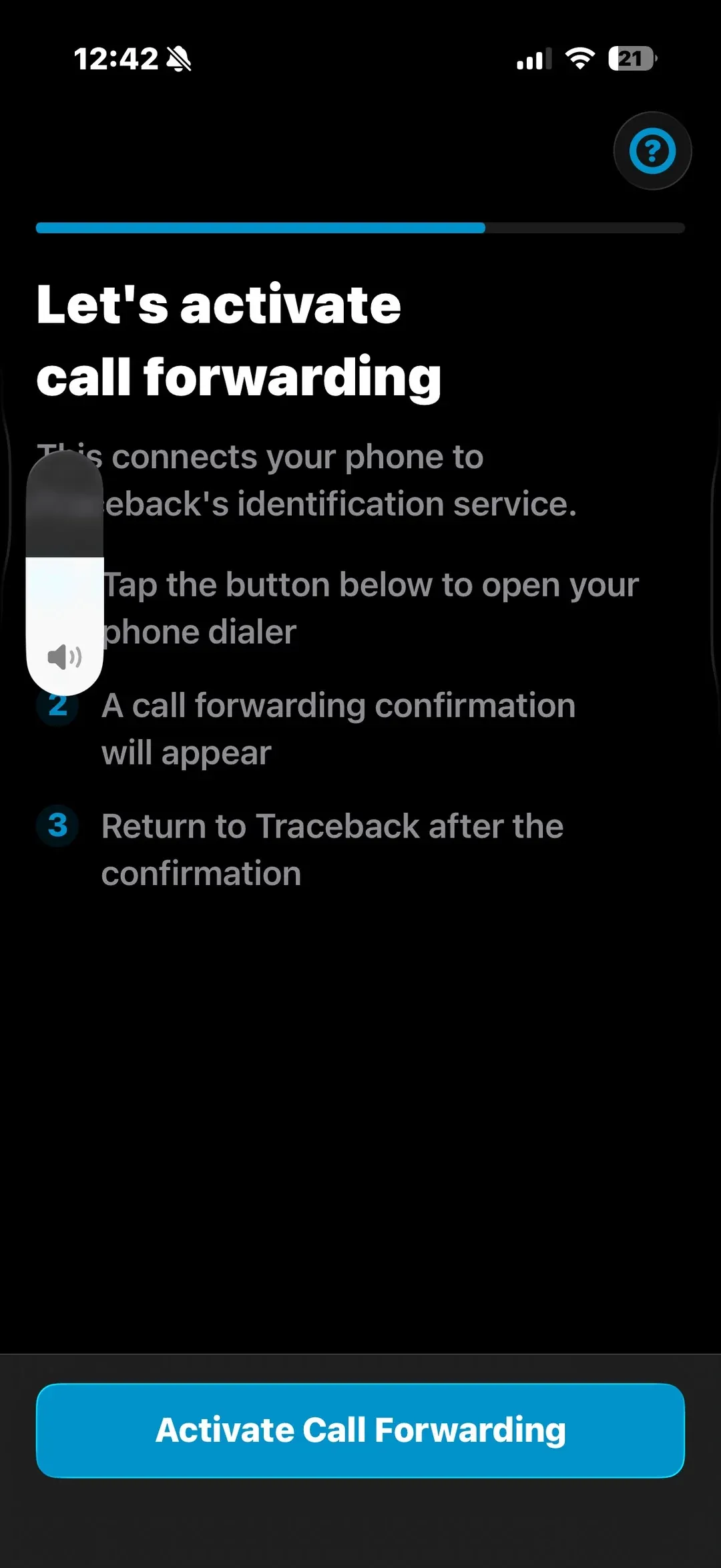
When the pop-up appears, place the call exactly as the app prompts. It shows the forwarding code for your specific carrier.
Check the screen to see if setup was successful or failed.
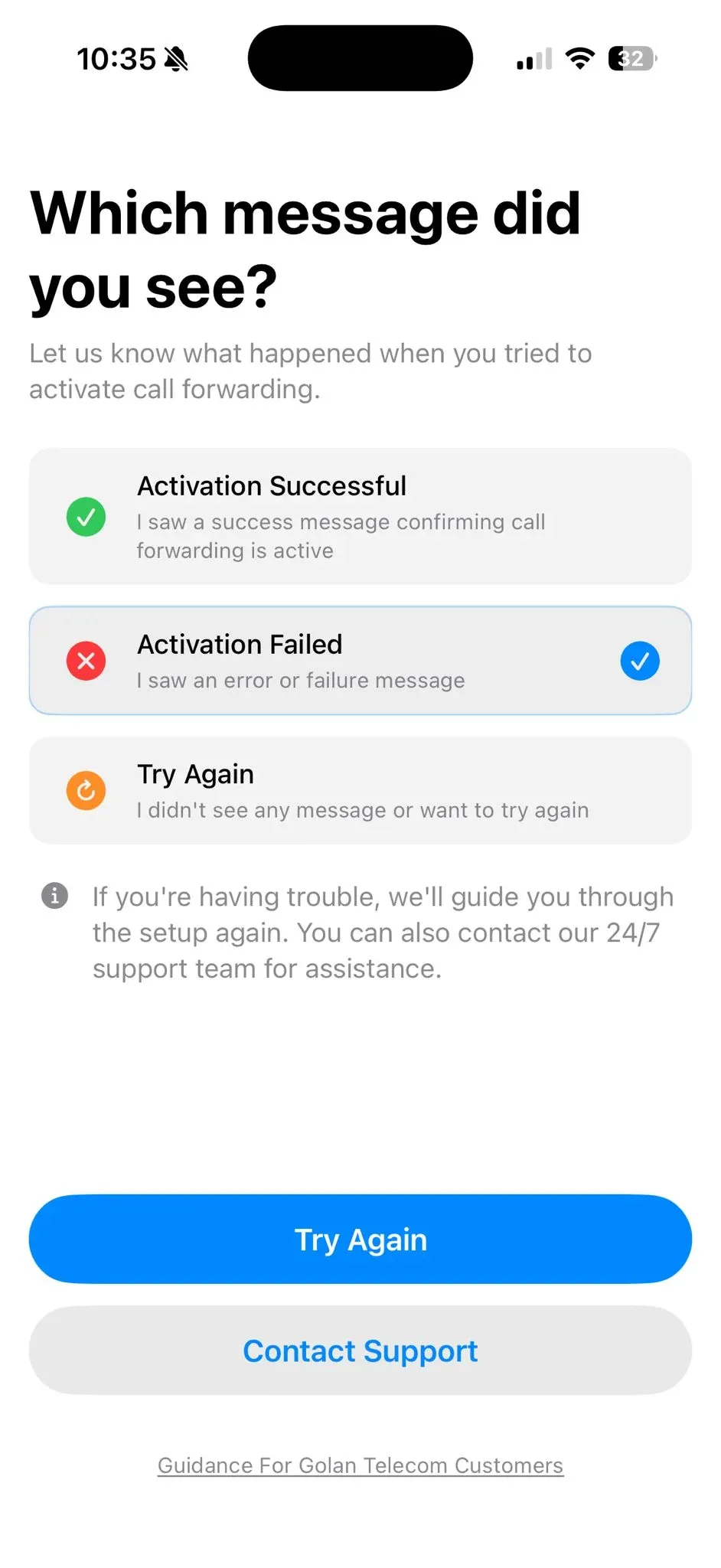
Not sure what your message means? See Which message did you see after setting up call forwarding?
If it's successful, run a test call: ask a friend to call from No Caller ID, then decline it.
Option 2: Set Up Manually
iPhone does have a Call Forwarding switch in Settings (Settings > Apps > Phone > Call Forwarding), but it forwards all your calls, not only when you are busy. Keep it off. Traceback only needs the code from the app, which you enter in your phone dialer:

- Open your phone's Caller / dialer.
- Enter the forwarding code the Traceback app shows for your carrier (it looks like 67#). The exact number depends on your carrier, so use the one the app displays during setup, or contact support and we'll send it to you.
- Make the call and check if it goes through successfully.
- Once it's set, decline incoming No Caller ID calls so they forward to us for the reveal.
How the Reveal Works
Once forwarding is set, you just decline a No Caller ID call when it comes in. The call forwards to Traceback, our system reveals the real number, and you'll see it plus a name if it's in our database.
Privacy Note
Call forwarding sends only the No Caller ID and Unknown calls you decline to Traceback for revealing. We don't listen to or record your conversations.
Troubleshooting
The setup call failed. Re-enter the forwarding code the app shows for your carrier exactly and try again. Confirm you're on a supported line. Prepaid SIMs and the Wecom carrier aren't supported.
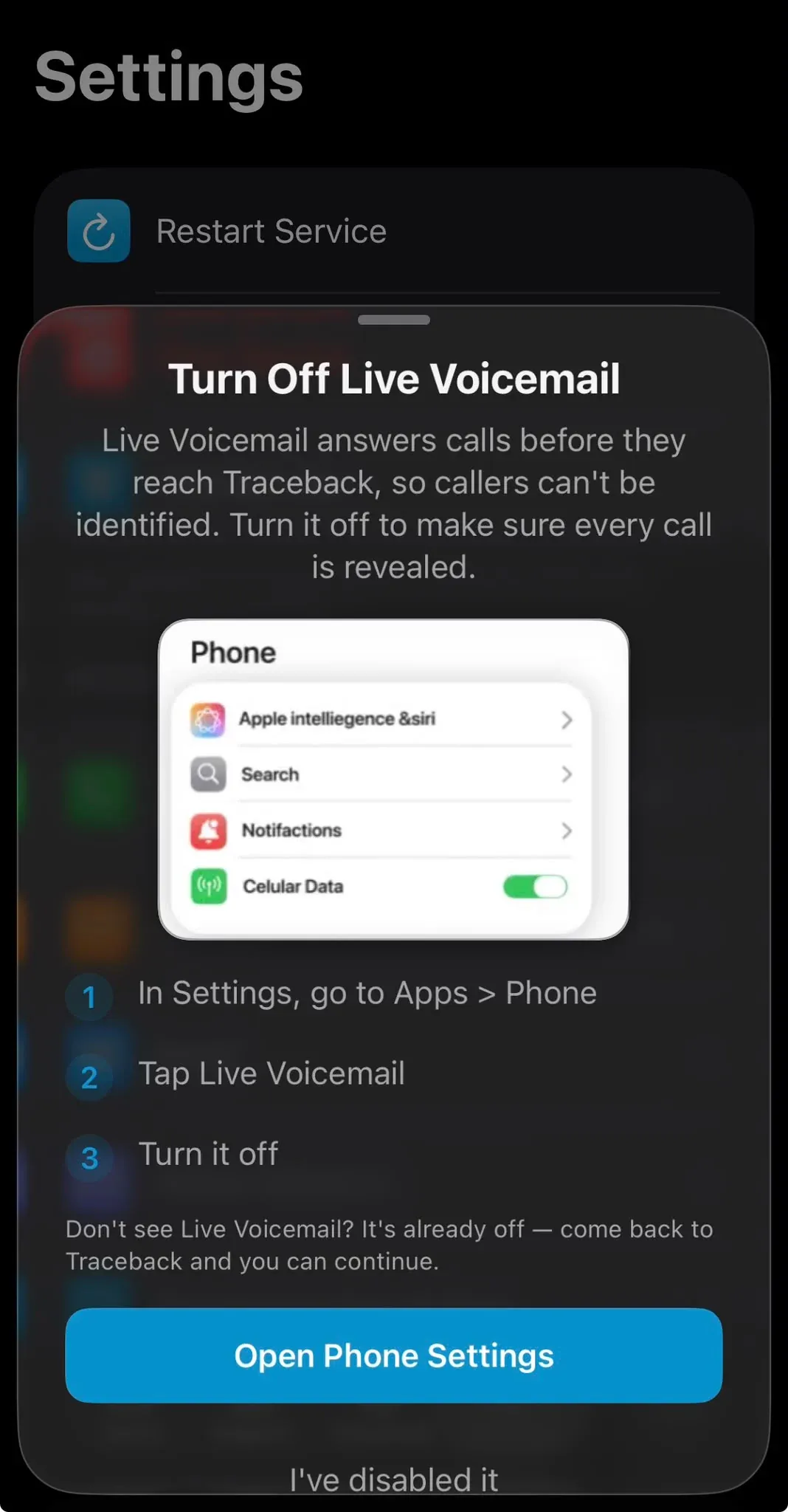
I declined a call but got no reveal. Make sure forwarding is active and the call didn't go to voicemail first. Voicemail picking up stops the reveal.
On iPhone, turn off Live Voicemail, because it answers the call before it reaches Traceback: Settings > Apps > Phone > Live Voicemail > Off.
It worked, then stopped. If you moved to a new phone, forwarding doesn't move with you, so turn it on again: open Traceback, go to Settings and tap Restart Service. If you changed your SIM and have a new number, contact support so we can move your subscription to it. Full details are in What to do after changing SIM, phone or carrier.
Frequently Asked Questions
How do I set up call forwarding for Traceback on iPhone?
Open the Traceback app, go to Settings -> Restart Service, and follow the prompt. It gives you the exact forwarding code for your carrier to dial. You can also get it from support.
Why can't I find call forwarding in iPhone Settings?
iPhone has a Call Forwarding switch, but it forwards all calls, not only when you are busy, so keep it off. Enter the forwarding code from the app in the dialer instead.
Do I answer or decline to reveal a No Caller ID call?
Decline it. Declining forwards the call to Traceback, which is what reveals the number.
Why isn't the reveal working after setup?
Check that the call forwards to us and isn't caught by voicemail, and that you're on a supported line (not prepaid or Wecom).
Open this guide on your phone
Setup happens on your phone. Scan to keep these steps open while you do it.
Was this article helpful?
Your feedback helps us write better support content.
Related articles
From the blog

No Caller ID on iPhone: What It Means and How to Reveal Who Called
The complete guide to identifying hidden calls on iPhone, what Apple offers, what's missing, and how Traceback reveals the real number

How to Call from a Private Number: #31# Code, iPhone, Android & Landline
All the ways to hide your number in Israel, what costs money, and when your private call won't actually stay private

Traceback vs MaskOff: Which No Caller ID App Fits You in Israel? (2026)
A factual comparison, based on what each app publishes