How Do I Sync with the Server?

Notifications acting up or reveals not coming through? Syncing with the server is the quickest fix. It refreshes your connection to Traceback so things start working again.
Use Sync to Server (Traceback app, Settings) when notifications stop arriving or reveals seem to have stopped. It refreshes the link between the app and our system; afterwards, check it with a declined No Caller ID test call.
When to Sync with the Server
Use this when your notifications aren't arriving the way they should, or when reveals seem to have stopped. A server sync re-establishes the link between the app and our system.
How to Sync
- Open the Traceback app and go to Settings.
- Tap Sync to Server.
- Wait for the sync to finish.
- Try a test reveal to confirm notifications are working again.
Privacy Note
Syncing with the server only refreshes your app's connection so reveals and notifications work correctly. It doesn't share anything beyond what's needed to keep the service running.
Troubleshooting
My notifications stopped after a reveal. Run a server sync first, it's the most common fix for notification issues.
Sync didn't fix it. Make sure notifications are enabled (Settings → Notifications), then restart the app. If reveals are also failing, re-run Restart Service.
I'm not sure if the sync worked. Ask a friend to call from No Caller ID and decline it. A working notification confirms the sync.
Frequently Asked Questions
What does syncing with the server do?
It refreshes your app's connection to Traceback, which usually fixes notification problems. Find it in Settings → Sync to Server.
My notifications aren't working, what do I do?
Sync with the server first. If that doesn't help, check that notifications are enabled and restart the app.
How often should I sync?
Only when something seems off, like missing notifications. Day to day, you don't need to sync manually.
Will syncing delete my data?
No. It just refreshes your connection. It doesn't remove your settings or revealed call history.
Open this guide on your phone
Setup happens on your phone. Scan to keep these steps open while you do it.
Was this article helpful?
Your feedback helps us write better support content.
Related articles
From the blog
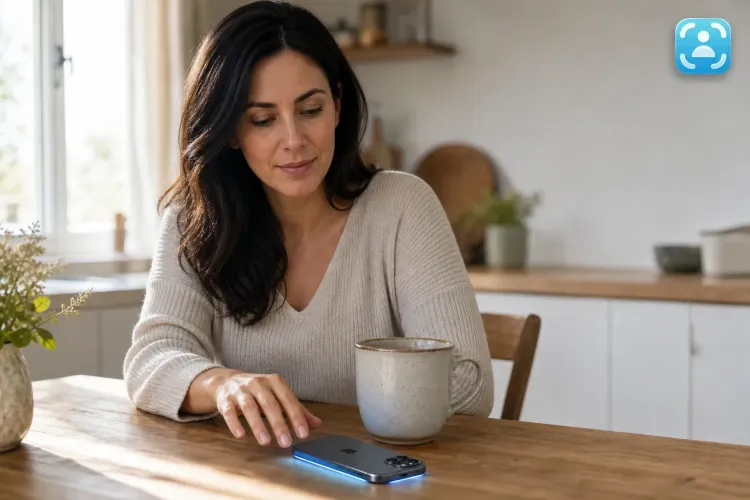
No Caller ID on iPhone: What It Means and How to Reveal Who Called
The complete guide to identifying hidden calls on iPhone, what Apple offers, what's missing, and how Traceback reveals the real number

Traceback vs MaskOff: Which No Caller ID App Fits You in Israel? (2026)
A factual comparison, based on what each app publishes
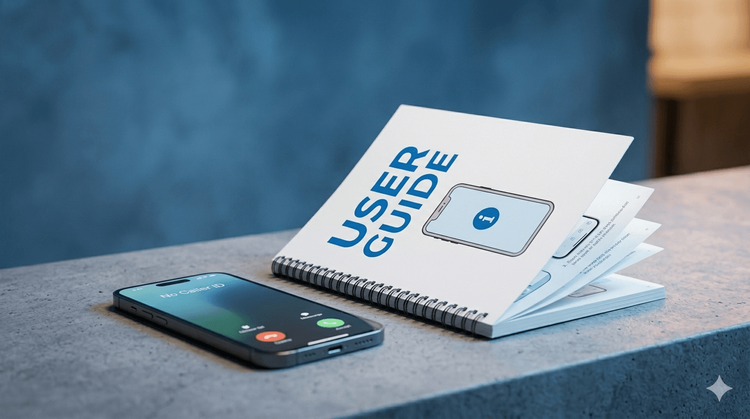
How to Call Back a Hidden Number in Israel (2026)
Why you can't dial back a hidden call, and what works instead